Automation
An automation combines a target URL with steps, loop rules, settings, and monitoring behavior.
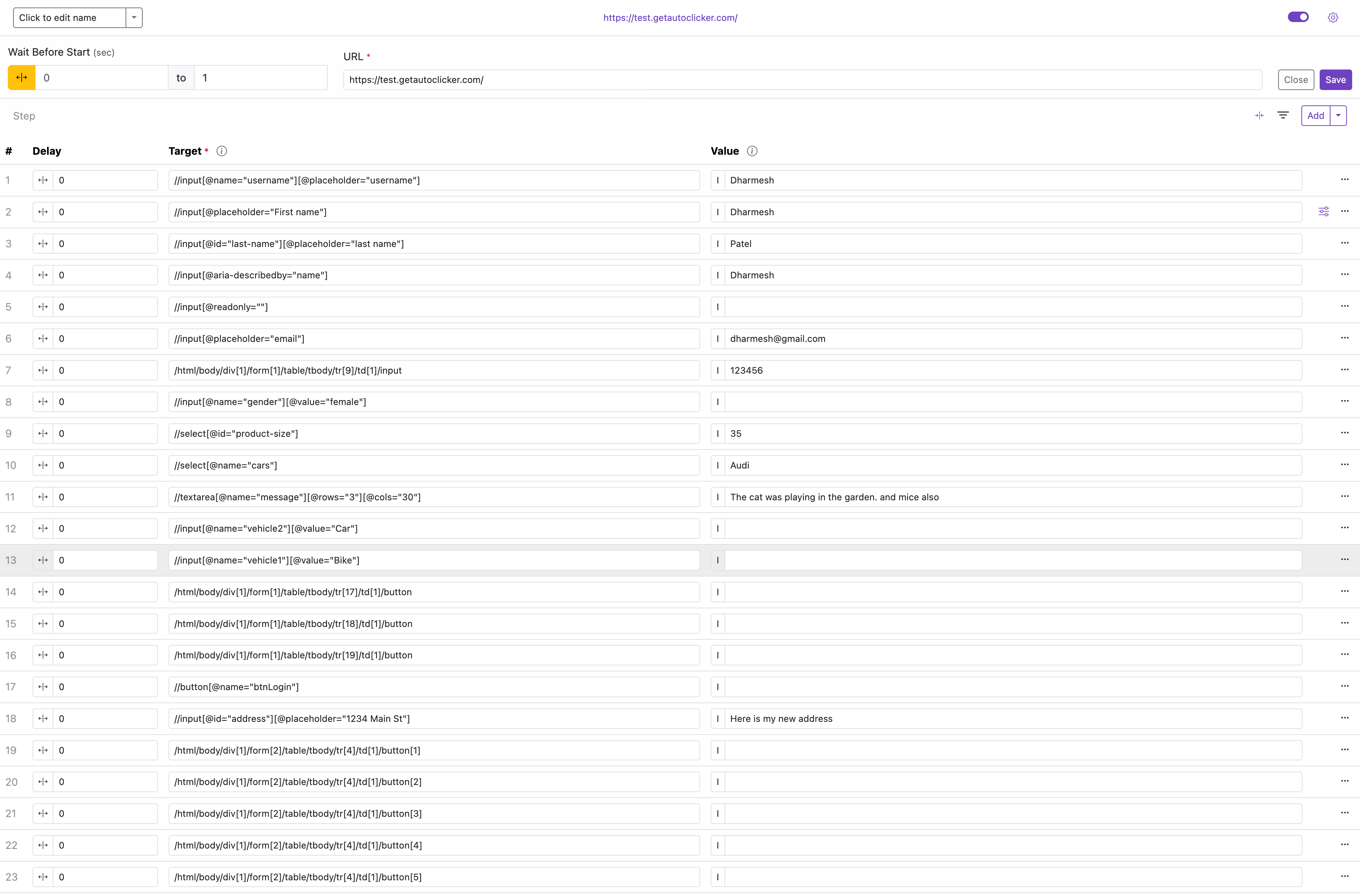
An automation is the top-level unit. Each automation targets a URL, contains one or more Steps, and can optionally define Loop, Monitor, Publish, and Automation Settings.
Name and Actions
Each automation row has an input field showing the automation name and a dropdown button grouped next to it.
Name input
- Click the name field directly to edit it inline.
- Use a descriptive name so long lists stay readable.
- The name defaults from the URL or captured page title.

Dropdown button
Click the split button next to the name to open a menu with all automation actions:
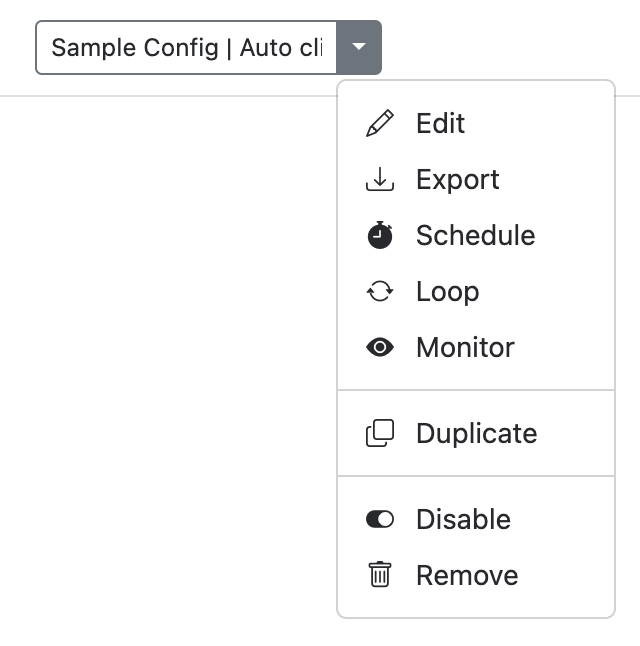
| Action | Description |
|---|---|
| Edit | Open the automation detail screen to edit URL, Wait Before Start. |
| Export | Download this automation as a single JSON file for backup or sharing. |
| Schedule | Open Schedule settings to configure when the automation should run automatically. |
| Loop | Open Loop settings to set repeat count and interval. |
| Monitor | Open Monitor settings to watch for page changes. |
| Publish | Open Publish to publish, unpublish, or clone cloud-published automations. |
| Duplicate | Create a copy of the automation and add it to the list. |
| Disable | Temporarily turn off the automation without deleting it. |
| Remove | Permanently delete the automation. |
URL and Wait Before Start

To edit the URL or Wait Before Start, click the URL field directly or choose Edit from the dropdown menu. An inline edit section expands with:
- URL — the target address or pattern. See URL for matching options.
- Wait Before Start — how long to wait before the automation starts after the page loads.
Click Save to apply changes or Cancel to discard.
Wait Before Start
Some pages need extra time to finish rendering before the automation can reliably find elements. Wait Before Start adds a pause between the page load event and the first step running.
- Enter a number in milliseconds, for example
1000for a 1-second delay. - Click the range button to set a random delay between a minimum and maximum value — useful when page load time varies.
Examples (seconds)
0.5— half a second1— one second1.5— one and a half seconds2— two seconds

From 1andTo 4— random value between 1 and 4 (enable range mode first)From 2andTo 3— random value between 2 and 3 (enable range mode first)From 0.5andTo 1.5— random value between 0.5 and 1.5 (enable range mode first)- Leave blank to use the default value (or start immediately, depending on the field)
URL changes on modern apps
- Automations can re-run on single-page apps when the address changes without a full reload.
- Use Run on Page Navigation for Gmail, social feeds, dashboards, and similar sites.
- Pair it with precise URL matching so the automation does not trigger too broadly.