Settings · Retry Attempts
Retry settings control how the extension handles cases where a target is not found on the page.
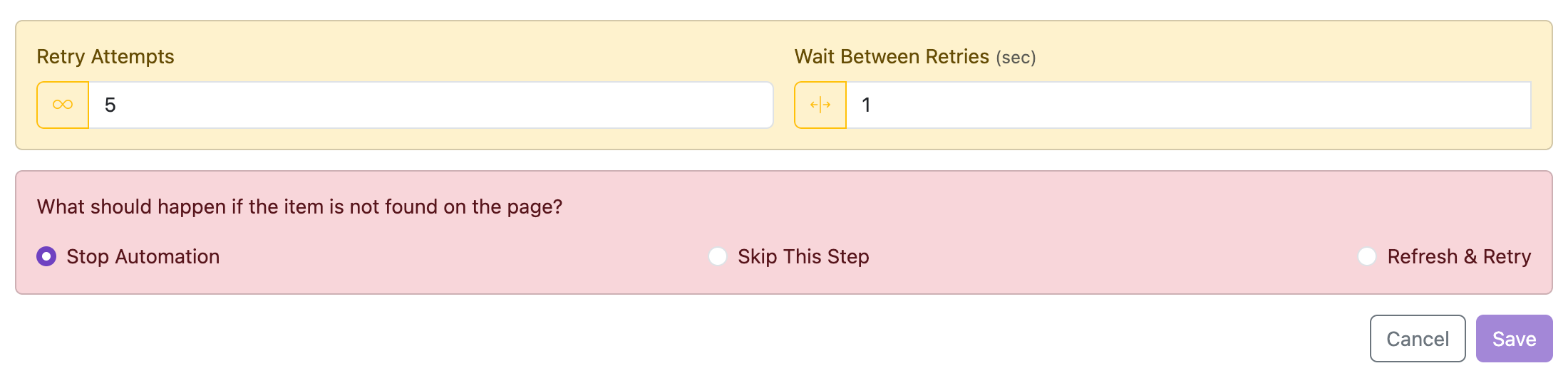
Sometimes a page takes a moment to load all its elements. These settings tell the extension how long to keep trying before giving up, and what to do if it still cannot find what it needs.
These are global defaults. You can override them for a specific step in Step Settings.
Retry Attempts
How many times the extension should look for an element on the page before giving up. The default is 5.
- Enter any positive number, for example
10to try ten times. - Click the infinity button (∞) next to the input to keep trying until the element appears, with no limit.
Unlimited mode

Click the ∞ button next to the input to switch to unlimited mode. The number input is disabled and the extension keeps retrying until the element is found or the automation is stopped manually.
Wait Between Retries
How long the extension should wait between each attempt. The default is 1 second.
- Enter a single number for a fixed delay (for example
2for a 2-second pause between tries). - Click the range button to set a random delay between a minimum and maximum value — useful when you want less predictable timing.
Examples (seconds)
0.5— half a second1— one second1.5— one and a half seconds2— two seconds

From 1andTo 4— random value between 1 and 4 (enable range mode first)From 2andTo 3— random value between 2 and 3 (enable range mode first)From 0.5andTo 1.5— random value between 0.5 and 1.5 (enable range mode first)- Leave blank to use the default value (or start immediately, depending on the field)
What should happen if the item is not found on the page?
Once all retry attempts are used up and the element still cannot be found, you can choose what happens next.
| Option | Description |
|---|---|
| Stop Automation | Stop everything immediately. No further steps will run. (Default) |
| Skip This Step | Ignore this step and move on to the next one. |
| Refresh & Retry | Reload the page and try running the automation again from the beginning. |
| Go to Step | Jump to a specific step number instead of stopping. Useful for branching flows. |