Schedule
Schedule an automation to run automatically on a specific date and time, with an optional repeat interval in minutes.
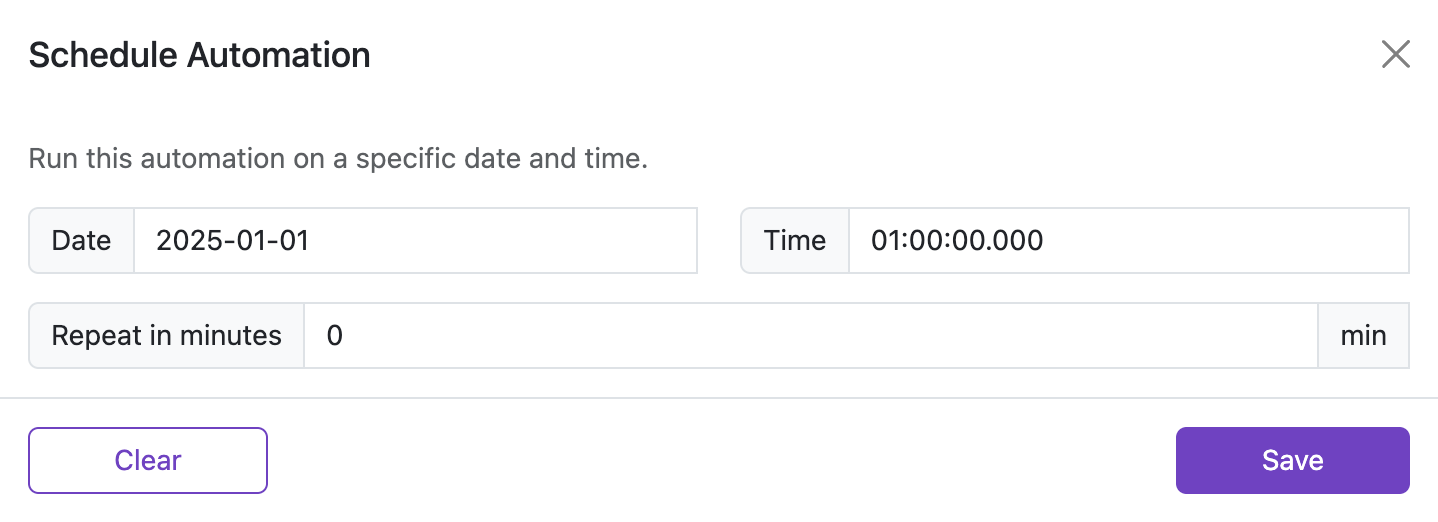
Schedule lets you set a future date and time when an automation should run, and optionally repeat it at a fixed interval.
Opening Schedule
From the automation row, open the dropdown button next to the automation name and choose Schedule. A panel slides in from the right with three fields.
Fields
Date
The calendar date on which the automation should first run.
- Format:
YYYY-MM-DD(example:2026-06-15) - The year must start with
20. - Month must be
01–12, day must be01–31.
Time
The time of day at which the automation should trigger on the scheduled date.
- Format:
HH:mm:ss.sss(example:09:30:00.000) - Uses 24-hour clock:
00:00:00.000is midnight,23:59:59.999is the last moment of the day. - Milliseconds are required — use
.000if you do not need sub-second precision.
Repeat
How often to re-trigger the automation after the initial run.
- Unit: minutes
- Enter a positive whole number (example:
60to repeat every hour). - Leave it as
0to run only once at the scheduled date and time.
The repeat interval uses the browser's alarm system. The minimum reliable interval depends on the browser's alarm granularity; very short intervals (under 1 minute) are not supported.
Saving and Clearing
- Click Save to apply the schedule. The automation will open its target URL in a new tab at the scheduled time.
- Click Clear to remove the schedule entirely. The automation returns to its normal trigger behavior.
How it works
When you save a schedule the extension registers a Chrome alarm for that automation. At the scheduled date and time Chrome fires the alarm, which opens the automation's target URL in a new tab. If Repeat is set, the alarm continues firing every N minutes until you clear the schedule.
Example
To run a form-filling automation every weekday morning:
- Set Date to the first day you want it to run, for example
2026-05-05. - Set Time to
09:00:00.000. - Set Repeat to
1440(24 hours × 60 minutes) so it triggers again at the same time the next day. - Click Save.
1440, 1 week = 10080.