Page Guard
Only run a step if a value on the page meets your condition — check text, attributes, or browser values before the step executes.
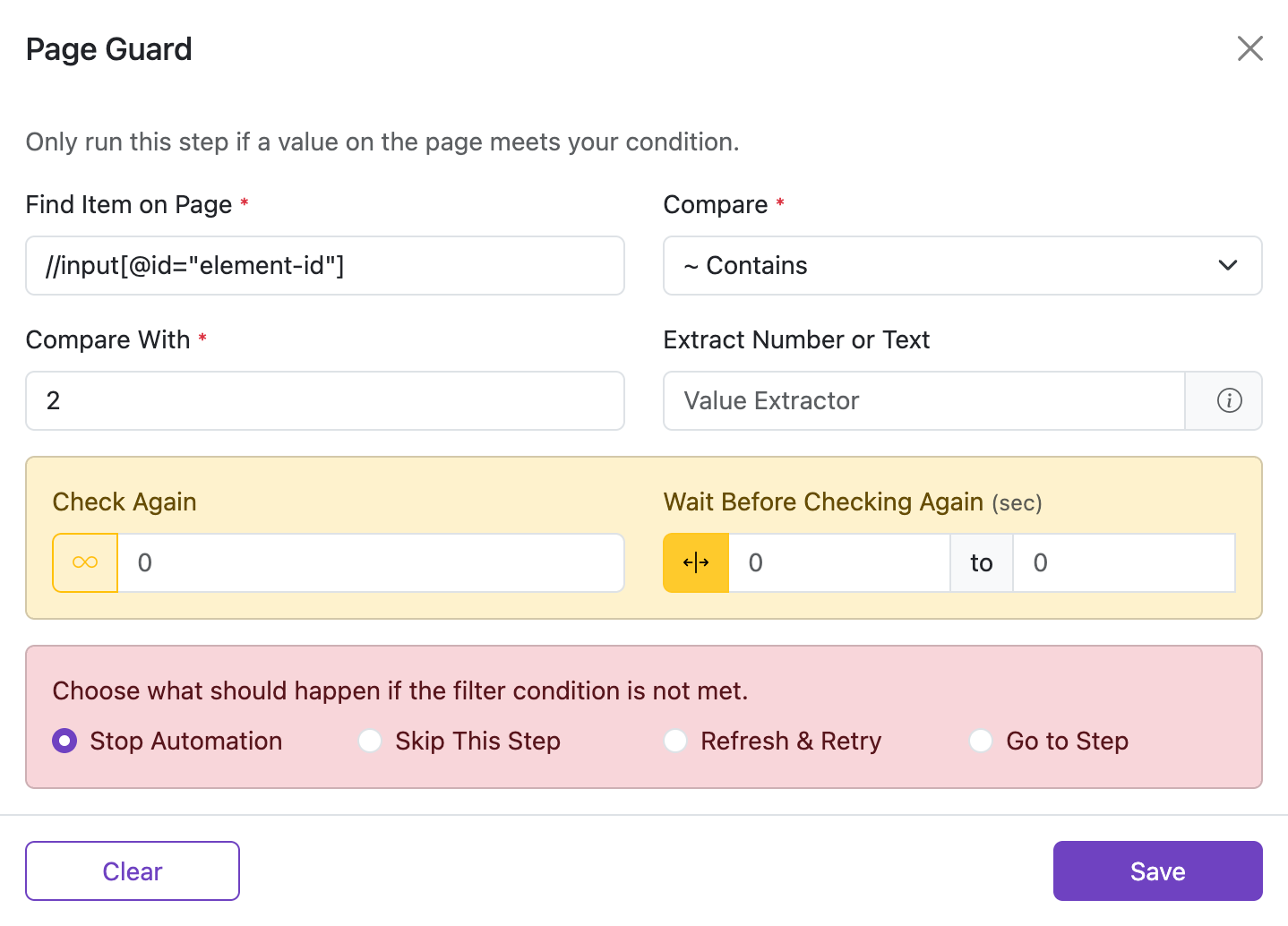
Only run this step if a value on the page meets your condition.
Watch guard conditions (Contains, GreaterThan, value extractor, recheck, Func::) gate each step.
Page Guard checks the page before a step executes. You can read text or attributes from any element, evaluate browser values like the current time or URL, compare them against your criteria, and decide whether to proceed.
To open Page Guard, click the three-dot menu at the end of a step row and choose Page Guard.
Find Item on Page
The element or value to evaluate. This is what Page Guard reads before running the step.
You can use any selector type supported by the step Element Finder — XPath, #id, ClassName::, Name::, TagName::, Selector::, or Position::x,y.
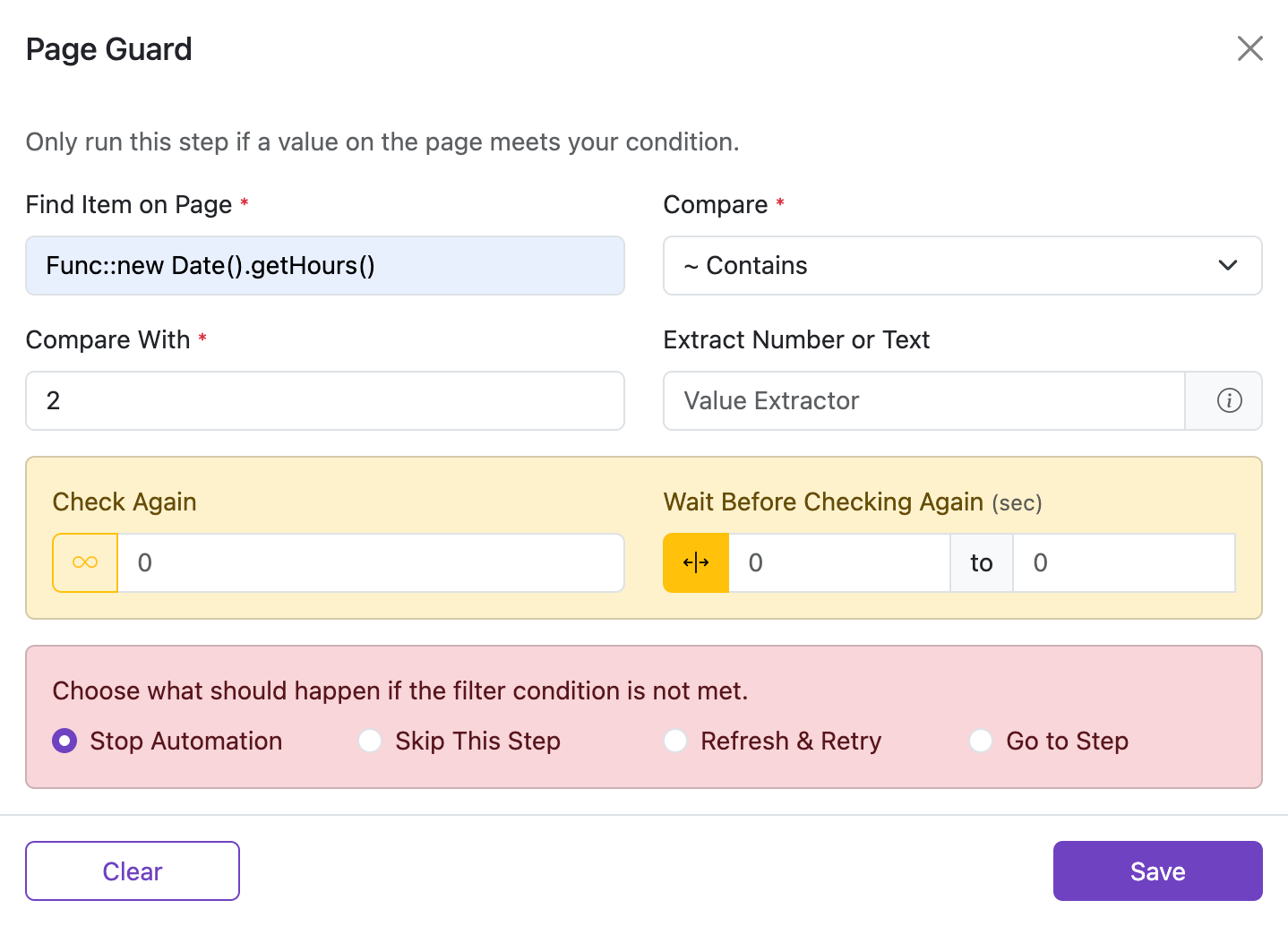
Browser Functions (Func::)
Instead of a page element, you can evaluate a JavaScript expression by prefixing with Func::.
| Expression | Returns |
|---|---|
Func::new Date().getHours() | Current browser hour (0–23). See Date for all methods. |
Func::location.href | Current page URL. See Location for all properties. |
Func::<expression> | Any valid JavaScript expression that returns a value. |
Func:: expressions you wrote yourself or fully understand. Malicious scripts can act on your behalf and violate your privacy.Func:: is only available in Page Guard. Using it in a step's Element Finder will cause an error.Compare
How the page value (a) is compared to your input (b).
| Condition | Types | Description |
|---|---|---|
Equals | String, Number | (a) equals (b) |
Not Equals | String, Number | (a) is not equal to (b) |
Contains | String | (a) contains (b) |
Not Contains | String | (a) does not contain (b) |
Greater Than | Number | (a) > (b) |
Less Than | Number | (a) < (b) |
Greater Than Or Equal | Number | (a) ≥ (b) |
Less Than Or Equal | Number | (a) ≤ (b) |
Is Checked | Boolean | Checkbox or radio is checked |
Is Not Checked | Boolean | Checkbox or radio is not checked |
Compare With
The expected value to compare against. This is (b) in the comparison.
- Enter text to match exactly or partially (depending on the chosen condition).
- Enter a number for numeric comparisons (
Greater Than,Less Than, etc.). - For boolean conditions (
Is Checked,Is Not Checked) the field is still required — enter any placeholder such astrue; it is ignored by the comparison.
Extract Number or Text
Use a regular expression to extract part of the element's text before comparison. Useful when the text includes currency symbols, labels, or surrounding content.
Examples:
\d+\.\d*—$123.00→123.00\d+—$123.00→123(?<=\$)[\d,]+(?:\.\d+)?—$1,234.56→1,234.56\d{4}-\d{2}-\d{2}—Updated: 2024-07-01→2024-07-01(?<=Total:\s)\d+—Total: 42 items→42
Try your pattern at regex101.com.
Attribute tips: - @aria-checked — extracts the aria-checked value (e.g., true/false) - @class — extracts the full class string; use a regex like (^|\s)active(\s|$) to check for a single
class - @type — extracts the type attribute (e.g., checkbox) - @data-status — any attribute by replacing data-status with the actual name
If Condition Not Met
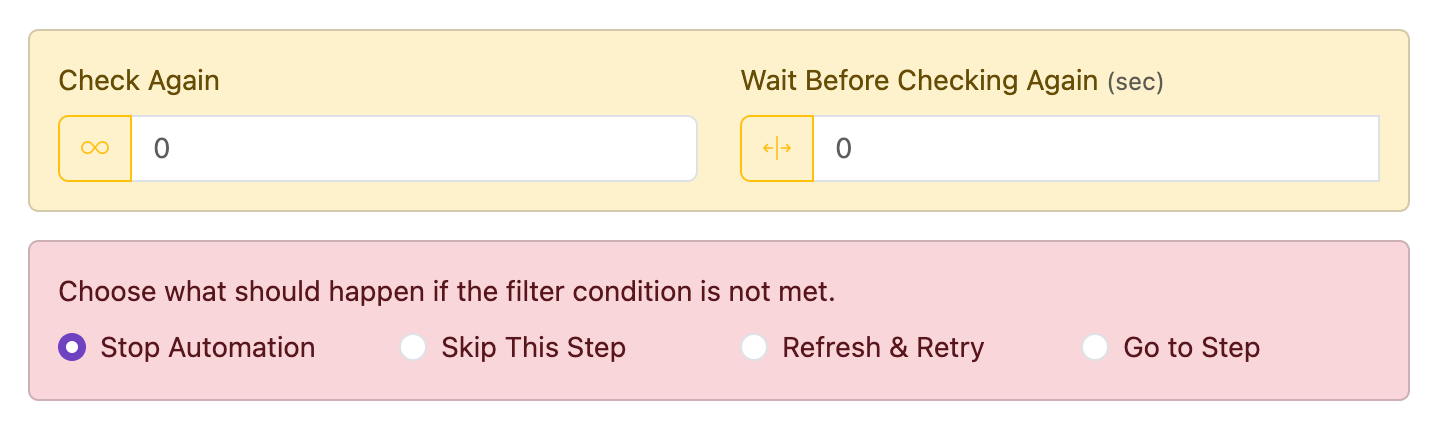
Choose what should happen if the filter condition is not met.
Check Again
How many times to retry the Page Guard condition when it does not match initially.
- Enter a positive number for a fixed retry limit, for example
5to try five times. - Click the infinity button (∞) to keep retrying until the condition matches.
- Leave it blank to check only once.
Unlimited mode

Click the ∞ button next to the input to switch to unlimited mode. The number input is disabled and the extension keeps retrying until the element is found or the automation is stopped manually.
Wait Before Checking Again (sec)
How long to wait between each retry attempt, in seconds.
- Enter a single number for a fixed delay, for example
2for a 2-second pause between retries. - Click the range button to set a random delay between a minimum and maximum.
- Leave it blank to retry immediately.
Examples (seconds)
0.5— half a second1— one second1.5— one and a half seconds2— two seconds

From 1andTo 4— random value between 1 and 4 (enable range mode first)From 2andTo 3— random value between 2 and 3 (enable range mode first)From 0.5andTo 1.5— random value between 0.5 and 1.5 (enable range mode first)- Leave blank to use the default value (or start immediately, depending on the field)
What happens if the condition is never met
| Option | Default | Description |
|---|---|---|
| Stop Automation | selected | Stop the full automation immediately. No further steps run. |
| Skip This Step | not selected | Skip this step and continue with the next one. |
| Refresh & Retry | not selected | Reload the current page and try again. |
| Go to Step | not selected | Jump to a specific step in the list. |