Automation Settings
Detailed explanation of automation-level settings such as run mode, page load timing, URL matching, start time, and browser-dialog bypass.
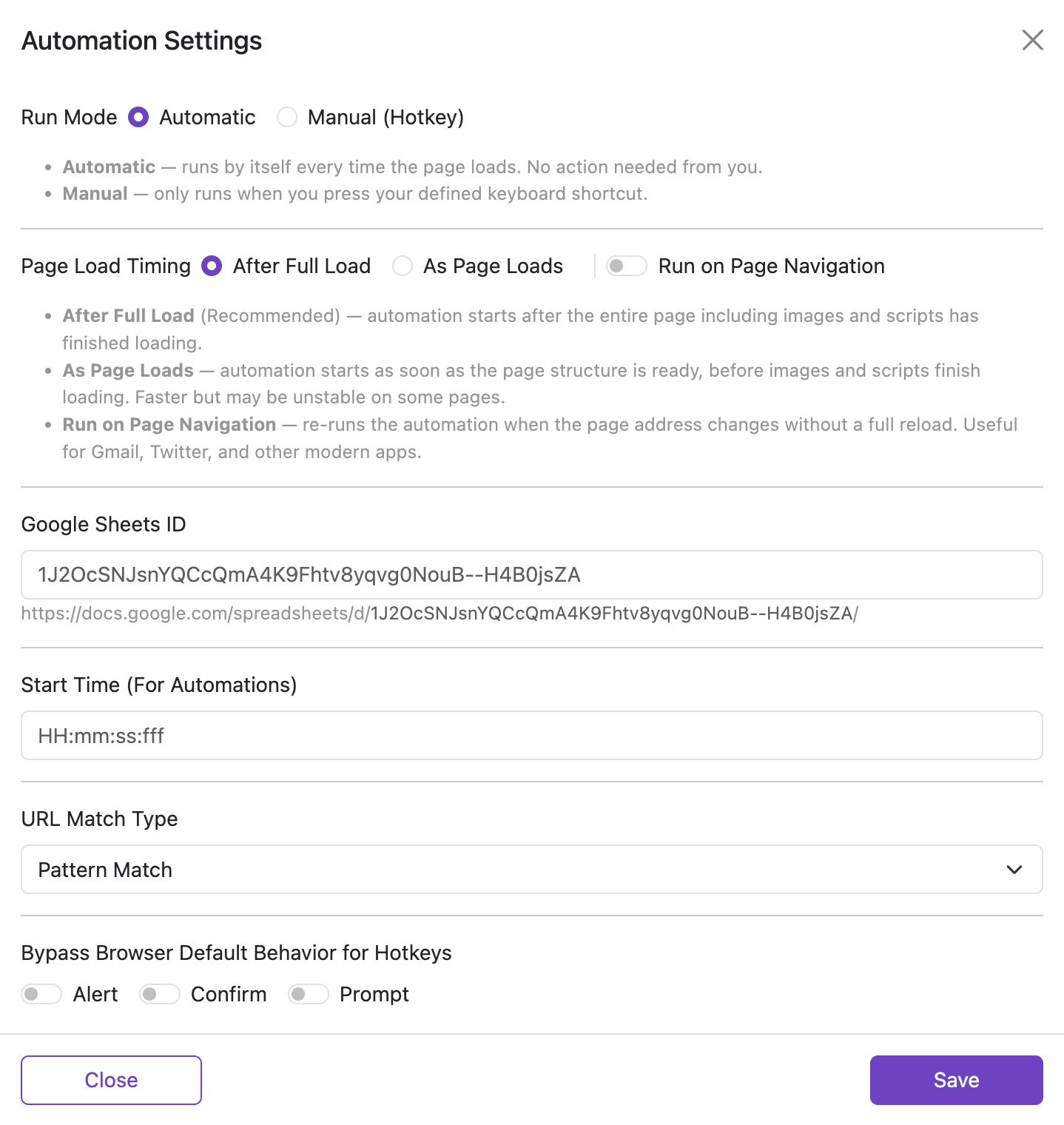
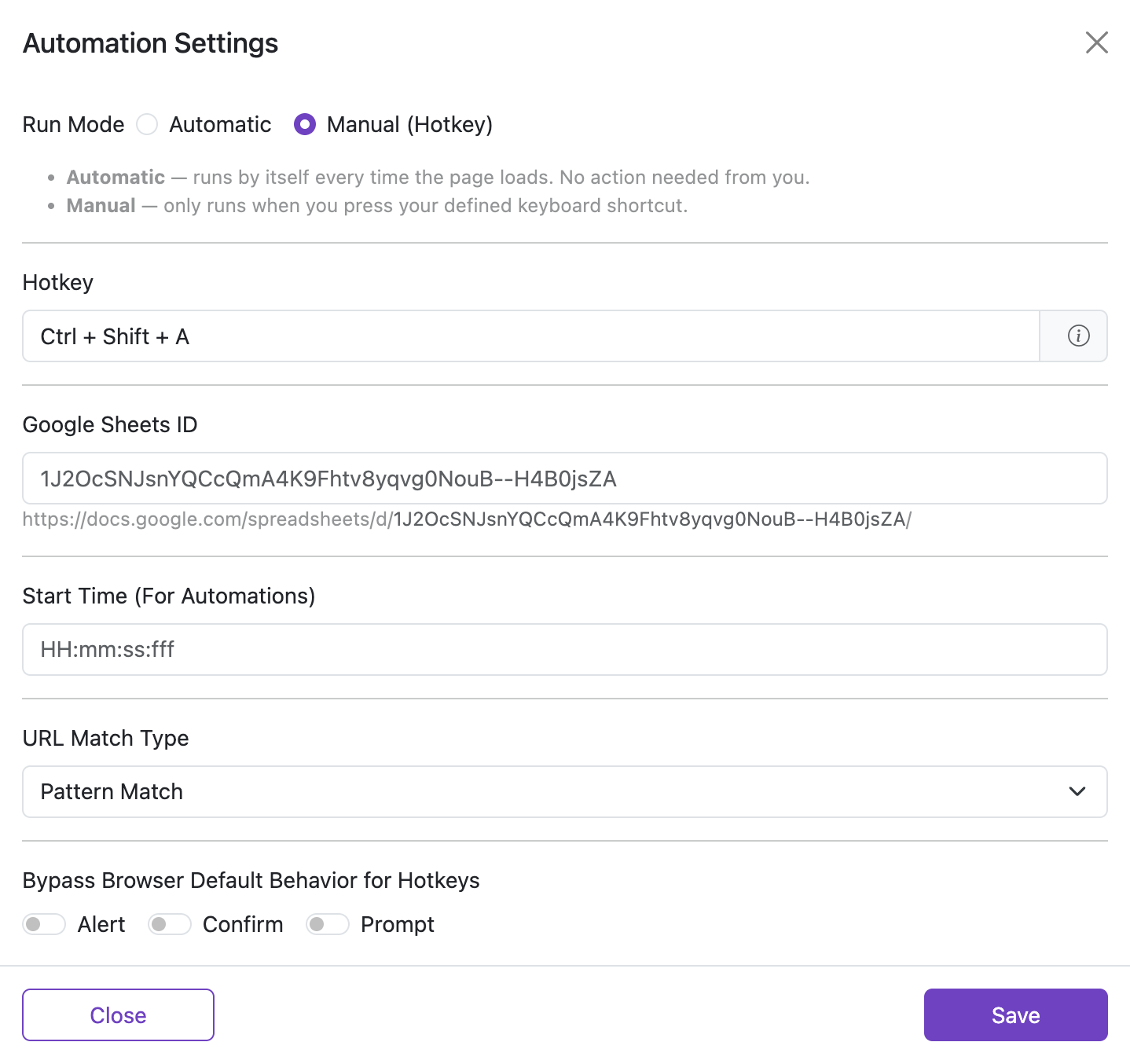
Run Mode
Choose whether the automation should start by itself or only when you trigger it with a hotkey.
- Automatic runs every time the page matches and loads.
- Manual (Hotkey) waits until you press the configured hotkey.
- If you switch modes, refresh the target page before testing again.
- Check the Status Bar when you want visual confirmation that the automation is ready.
Page Load Timing
| Option | Default | Description |
|---|---|---|
| After Full Load | selected | Starts after the entire page, including images and scripts, has finished loading. Recommended for stability. |
| As Page Loads | not selected | Starts as soon as the DOM is ready. Faster, but less reliable on pages that inject elements late. |
Run on Page Navigation
Re-run the automation when the page address changes without a full reload. This is important on SPAs and dashboards where navigation updates the URL but keeps the same browser tab alive.
When to use
- The site changes the URL as users move through tabs, steps, or routes.
- You need the automation to respond to in-app navigation instead of only full page refreshes.
How to enable
- Open the automation's Settings.
- Turn on
Run on Page Navigation. - Use it with
Automaticmode for the most predictable behavior.
What counts as a URL change?
Any change to the page address, such as the path (…/profile → …/profile/edit) or the query (…?tab=info → …?tab=security). Some sites also change the part after # (called a “hash”).
Examples
-
Exact page example (safe):
- URL Match Type: Exact URL →
https://shop.example.com/checkout - Result: Re-runs only inside that exact checkout flow.
- URL Match Type: Exact URL →
-
Regex for a section (safe but broad):
- URL Match Type: Pattern Match →
^https://shop\.example\.com/checkout/.*$ - Result: Re-runs on any sub-page under
/checkout/, such as shipping or payment.
- URL Match Type: Pattern Match →
-
Too broad (avoid):
- URL Match Type: Pattern Match →
^https://example\.com/.*$ - Result: May re-run across the whole site and cause duplicate automation.
- URL Match Type: Pattern Match →
Important: best practices and consequences
If you enable Run on Page Navigation with a very broad URL rule, the automation can keep re-triggering as the app navigates within the same tab. This can create duplicate steps.
- Create separate automations per subdomain or major route.
- Prefer Exact URL when possible; if using Pattern Match, make it as narrow as you can.
- If you don’t need repeated runs during navigation, leave this switch off.
Hotkey
Set the hotkey used by Manual mode. Supported combinations include:
Ctrl + keyCtrl + Shift + keyAlt + keyAlt + Shift + keyCtrl + Alt + Shift + key
See Run Mode.
Google Sheets ID PRO
Use this when your automation reads or writes values through Google Sheets features.
- Paste the spreadsheet ID, not the full sharing URL.
- The current UI validates that the value looks like a real spreadsheet ID.
Start Time (For Automations)
Set a daily start time in HH:mm:ss:fff format when you want the automation to wait until a specific time of day.
Examples:
08:30:00:000for 8:30 AM23:45:00:000for 11:45 PM
Important Notes:
- The automation waits until the specified time of day instead of starting immediately.
- This is most useful with Automatic mode.
URL Match Type
Choose how the URL field should be interpreted.
- Exact URL targets one specific address.
- Pattern Match uses a regular expression to cover multiple matching URLs.
Example:
- Exact URL:
https://www.example.com/login - Pattern Match:
^https://www\.example\.com/products/.*$
Bypass Browser Default Behavior for Hotkeys
Control whether the extension should bypass the browser's native alert, confirm, and prompt dialogs when an automation is started with a hotkey.
- Alert: Replace the native alert dialog.
- Confirm: Replace the native confirm dialog.
- Prompt: Replace the native prompt dialog.