Side Panel
Open the extension side panel to run automations from the Automation tab or capture new steps from the Recording tab.
On this page
The Side Panel is the quickest way to run automations and record new steps without leaving the current page.
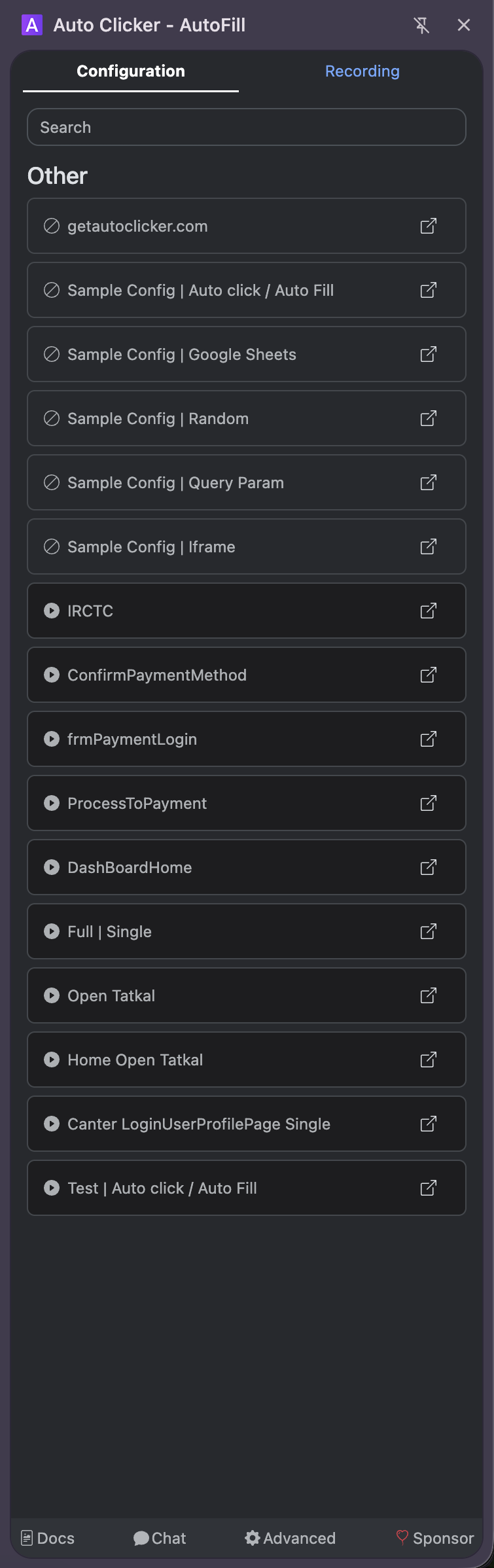
How To Open
Use any of the following methods:
- Right-click on a page and choose ▤ Side Panel / ☉ Recording.
- Open the extension action menu and launch the Side Panel.
Once opened, the panel stays attached to the browser side and updates as you navigate.
Tabs Overview
The Side Panel has three tabs:
AutomationsRecordingAsk
Automations Tab
- Shows the saved automation list.
- Matched group: automations that match the current site URL.
- Other group: all other saved automations.
- Click any automation row in the list to run it on the active tab.
- Click Edit Automation at the end of a row to open that automation in the Configuration page for editing.
Recording Tab
- Use
Start Recordingto begin capture. - Continue using the page normally (click, type, select, etc.).
- Steps are saved immediately as they are performed.
- Use
Stop Recordingto end capture.
For detailed recording behavior, see Recording.
Ask Tab
- Ask a question in plain language and get a sourced, AI-generated answer.
- Free for everyone, with no usage limit — sign-in is the only requirement.
For detailed usage, see Ask AI.
Footer Links
The Side Panel footer includes quick links for common actions:
Docs: opens the documentation site.Chat: opens the community chat.Advance: opens the Configuration/Advanced page.Sponsor: opens the sponsorship page.
All footer links open in a new tab so your current page and Side Panel stay in place.