Automations
Browse, search, explore, import, reorder, and manage all saved automations in one place.
On this page
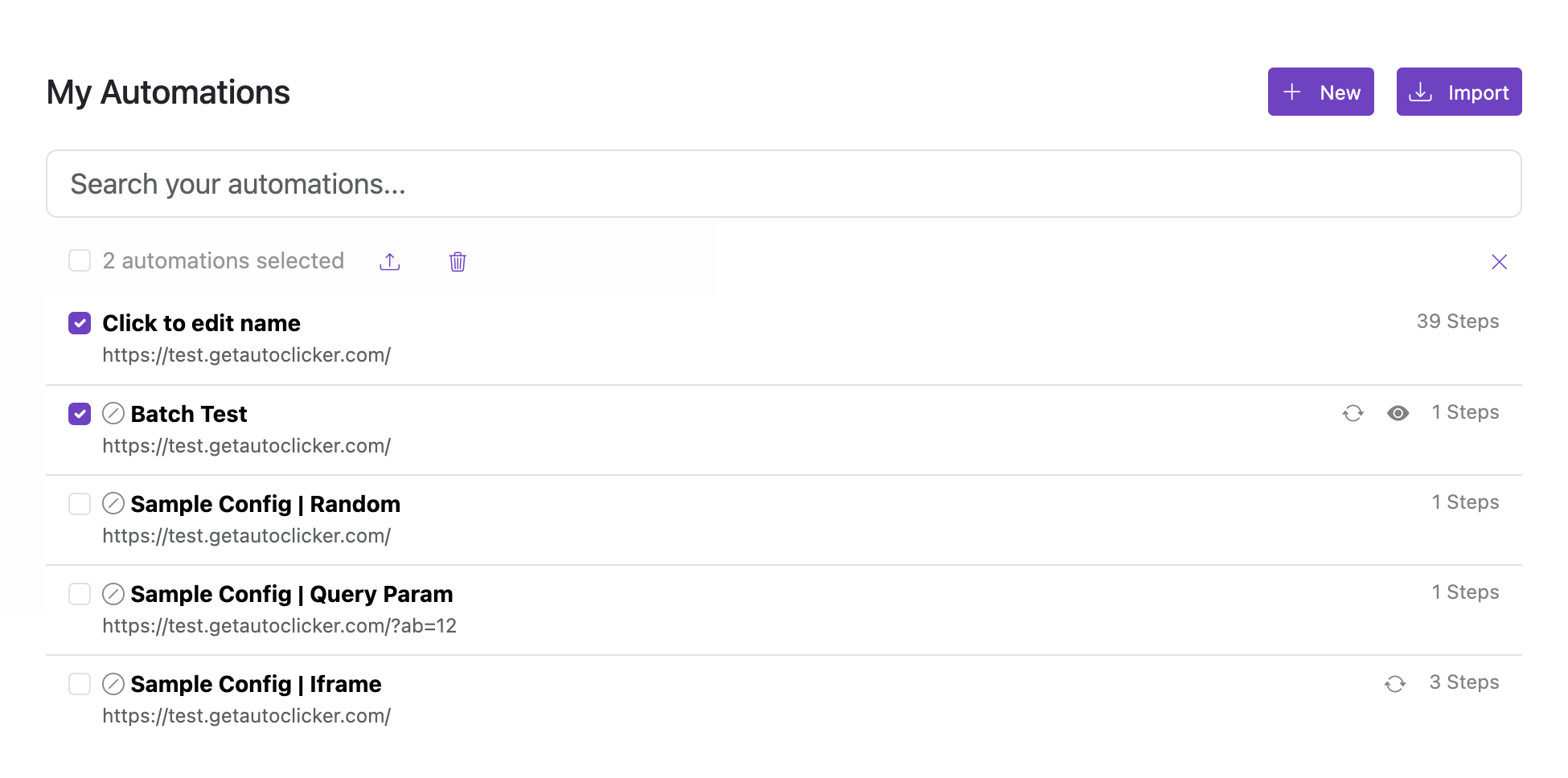
What you manage here
| Feature | Description |
|---|---|
| New | Create a new automation from the top-right‑click button. |
| Explore | Discover public automations and import them from the community feed. |
| Import | Import one or more automations from a JSON export. |
| Search | Filter automations by name, URL, or ID from the page or sidebar. |
| Organize | Filter by status and group by status, domain, or active features. |
| Select | Enter bulk-selection mode to export or delete multiple automations. |
| Reorder | Reorder automations so the highest-priority match appears first. |
| Step Count | See how many steps each automation contains before opening it. |
| Open Details | Select an automation to open its edit screen and review settings or loop rules. |
Typical workflow
- Review your automation list to find an existing entry or create a new one.
- Use the page search box or sidebar search button to filter by automation name, target URL, or ID.
- Use Explore when you want to import public automations.
- Click an automation to open its detail screen and edit its steps.
- Use
Selectwhen you want to bulk export or bulk remove multiple items. - Use
Reorderto control which automation wins when several match the same page.
Quick search
Select the search icon above the sidebar automation list to open quick search in the center of the page. Quick search includes all automations, regardless of the sidebar's Status filter. Start typing an automation name, target URL, or ID to narrow the results.
Use the up and down arrow keys to select a result, then press Enter to open it. Press Escape to close quick search without changing pages.
Organize the sidebar
Select the sliders icon next to the sidebar search icon to organize automations.
- Status defaults to All and filters only the sidebar list. Choose Enabled or Disabled when you need to narrow the sidebar to a subset.
- Group by defaults to None and applies to the sidebar and quick-search results. Choose Status, Domain, or Features to add labeled result groups.
- Features groups each automation by its active feature combination, such as Loop, Schedule, Monitor, or Published. Automations without one of these features appear under No features.
Best practices
- Use clear names so search results stay readable in long lists.
- Reorder broad automations below narrow URL-specific ones.
- Export before doing large imports or removals.
- Treat this screen as the source of truth for what will run inside the extension.