Step
What a step is and how to configure its target, value, timing, repeat, and disable state.
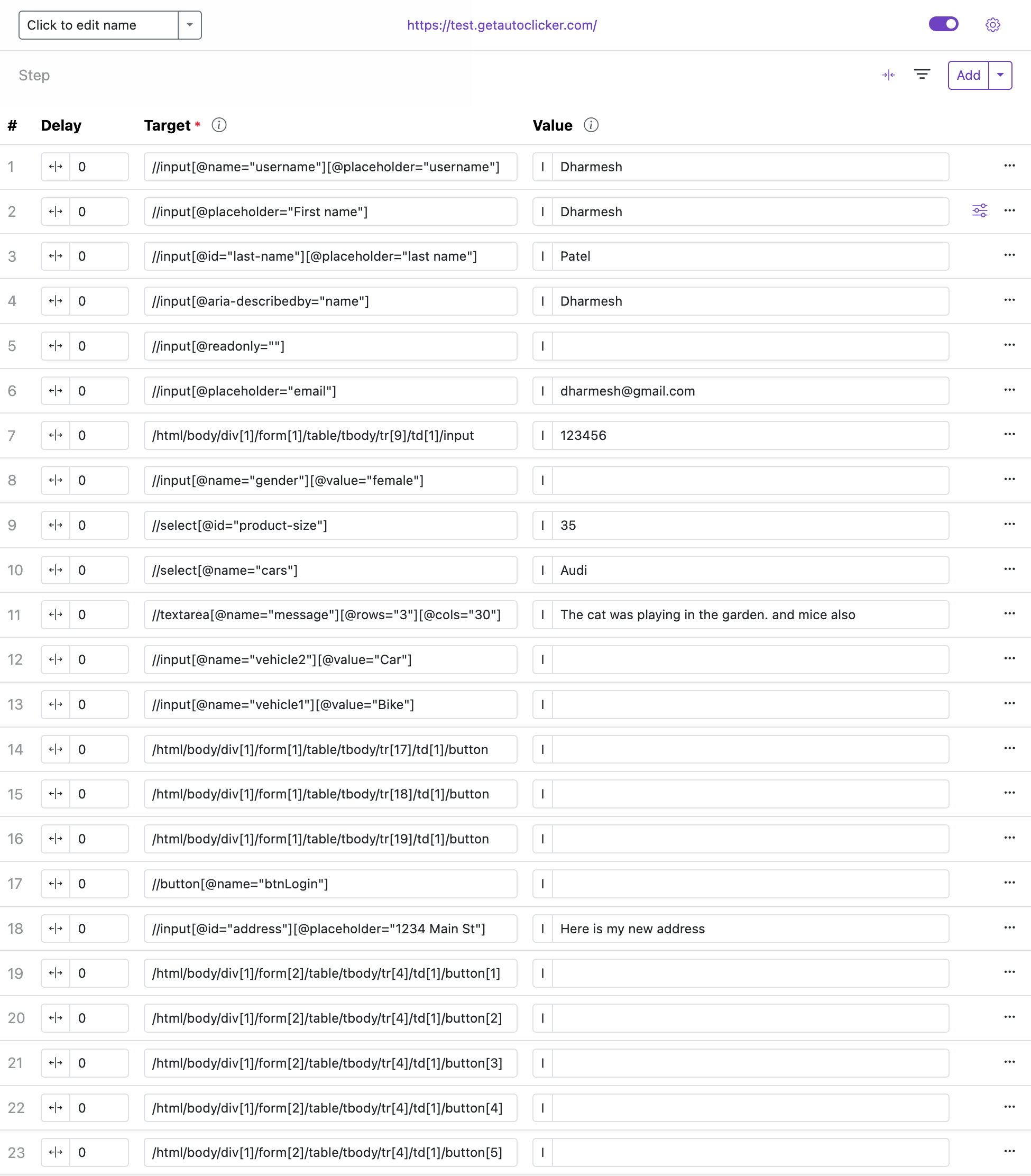
A step combines a Target and a Value.
- Target: locates the item on the page using XPath, position, or other supported strategies.
- Value: defines what to do. Leave it blank to click, or provide text, commands, events, or integrations.
In the options page, steps are edited inline inside the automation screen. Common columns include Delay, Name, Target, Value, Repeat, and Interval, plus step actions such as remove, disable, and more options.
Hover over or focus the inline ? beside an editor label for a short definition. When the same help control includes examples, activate it by click or keyboard to keep the detailed popover open. These glossary tips are available throughout automation, loop, guard, monitor, schedule, and step settings.
You can also add a Userscript as a full step using the Add Userscript option. Userscripts can replace the standard Name, Delay, Repeat, and Interval behavior with custom logic.
If the target is not found, the extension uses the retry settings from Global Settings or Step Settings, then follows your selected fallback such as Stop Automation, Skip This Step, Refresh & Retry, or Go to Step.
Delay
How long to wait before this step starts, in seconds.
- Use it when the page or a specific widget needs extra time to become ready.
- It runs before the step starts, not between repeats.
- Enter a single number for a fixed delay, for example
2for a 2-second pause. - Click the range button to set a random delay between a minimum and maximum value.
- Leave it blank or
0for no extra delay.
Examples (seconds)
0.5— half a second1— one second1.5— one and a half seconds2— two seconds

From 1andTo 4— random value between 1 and 4 (enable range mode first)From 2andTo 3— random value between 2 and 3 (enable range mode first)From 0.5andTo 1.5— random value between 0.5 and 1.5 (enable range mode first)- Leave blank to use the default value (or start immediately, depending on the field)
Name
A label to identify the step in the grid. This is optional but strongly recommended once an automation has more than a few steps.
Target
The target tells the extension which item on the page this step should act on.
- Use Element Finder for XPath, position-based finders, and similar selectors.
- Keep targets as specific as possible for reliability.
Repeat
How many additional times to run this step after the first execution.
- Leave it blank or
0to run once. - Enter any positive number for a fixed repeat count, for example
3to run the step four times total. - Click the infinity button (∞) to keep repeating until the automation stops.
Unlimited mode

Click the ∞ button next to the input to switch to unlimited mode. The number input is disabled and the extension keeps retrying until the element is found or the automation is stopped manually.
Interval
How long to wait between each repeat of this step.
- Enter a single number for a fixed delay, for example
1for a 1-second pause between repeats. - Click the range button to set a random delay between a minimum and maximum value — useful to reduce mechanical timing patterns.
- Leave it blank to start the next repeat immediately.
Examples (seconds)
0.5— half a second1— one second1.5— one and a half seconds2— two seconds
From 1andTo 4— random value between 1 and 4 (enable range mode first)From 2andTo 3— random value between 2 and 3 (enable range mode first)From 0.5andTo 1.5— random value between 0.5 and 1.5 (enable range mode first)- Leave blank to use the default value (or start immediately, depending on the field)
Disable
Temporarily turn off a step. Disabled steps remain in the automation but are skipped during execution.